The NASH Online Application System (NASH-OAS) at https://nash.deped.gov.ph is where teachers apply for the National Assessment for School Heads (NASH). You sign in with your own DepEd Google account (DepEd prefers it) or DepEd Microsoft account, create your account once, upload your documents through + Apply, and follow your application through its statuses until the Schools Division Office (SDO) issues your Assessment Permit.
DepEd’s Information and Communications Technology Service (ICTS) documented each screen for FY 2025 NASH Batch 2 in three guides: one for applicants, one for SDO validators and one for Regional Office (RO) validators. The second and third show what happens on the other side of your application: who opens your files, which buttons they press, and where the reason for a “Re-Apply” comes from. As of November 8, 2026, DepEd has not scheduled the next NASH (see When Is the Next NASH?), and its memorandum may change the screens, the documents or the fee.
Key findings
- One site, your own DepEd account. The guide requires “Your own official DepEd email account (active and currently being used)” and asks you to sign in “using your own DepEd Microsoft/Google account (preferably Google)” (Guide for Applicants, Parts II.B and III.A).
- You cannot edit the account yourself. A pop-up warns: “CHANGES ARE NOT ALLOWED AFTER CREATING YOUR ACCOUNT”, and the guide notes that the details are used “for enrollment in the DepEd Learning Management System (LMS), as well as for taking the assessments and viewing your results” (Part III.B). Corrections go through your SDO evaluator (FAQs, Q21).
- Upload one PDF per document, 10 MB at most. “Each file must not exceed 10MB” (FY 2025 Batch 2 application FAQs, Q25), and each document goes in its own slot on the Application Form (Part III.D).
- Two offices review it. The SDO evaluator can send it “For RO Validation”, return it as “Re-Apply” or “Disapprove” it; the RO validator then chooses “Approved / Qualified”, “Re-Apply” or “Disapprove” (SDO and RO validator guides, Part IV; DM-OUHROD-2025-3318, Annex 2, Part II.B).
- You finish in person. At “For Verification and Payment”, you bring your originals, two passport-size photos and the fee, PHP 720 in Batch 2, to the SDO; your status becomes “Assessment Permit Issued” once the SDO evaluator tags you as paid (Part V).
Before you start
Have these ready before you open the site (Guide for Applicants, Part II):
| You need | What the guide says |
|---|---|
| A computer | Windows 10 (version 20H2 or later) or Windows 11, or macOS 10.15 (Catalina) or newer; an Intel Core i3 or AMD Ryzen 3 dual-core processor; 4 GB of memory; 500 MB of free disk space; a 1024x768 display; “any Pre-installed Internet Browser” |
| An internet connection | “5mbps upload/download”, stable |
| Your DepEd email | Your own official account, “active and currently being used” |
| Your documents | Clear PDF scans of each requirement; see NASH Requirements and Online Application for the list and the scanning rules |
If your DepEd email does not work, fix that first. The Batch 2 instructions said: “Ensure that your DepEd email account is active, as it will be used for accessing the application and assessment portals. For any access issues, please coordinate with your respective Schools Division Information Technology Officer (SDITO) for technical assistance” (DM-OUHROD-2025-3318, Annex 1, item I).
Step 1: Sign in at nash.deped.gov.ph
Type https://nash.deped.gov.ph in your browser and press Enter. On the landing page, choose Sign in with Google or Sign in with Microsoft and pick your DepEd account (Part III.A, steps 1–3).
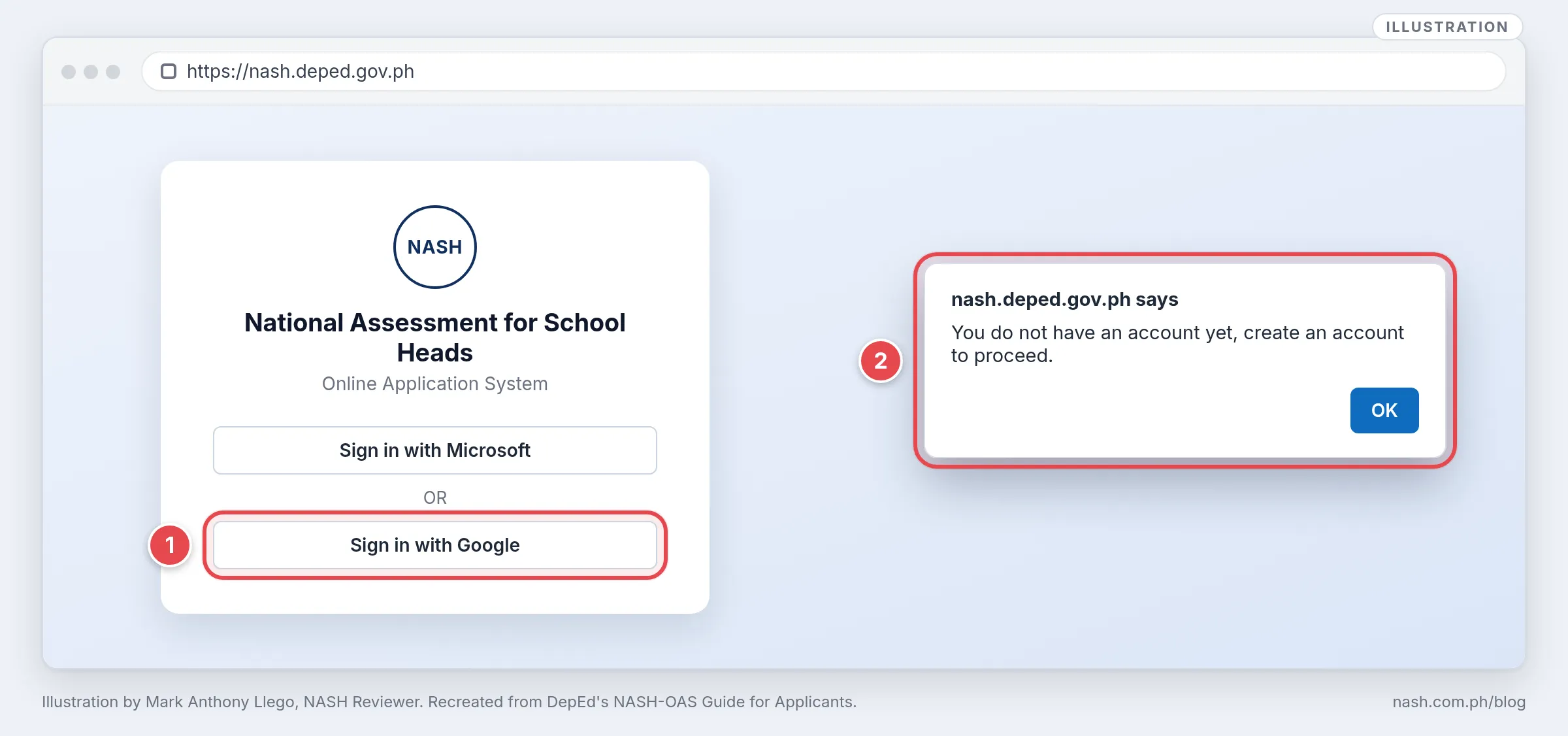
The first time, a pop-up says: “You do not have an account yet, create an account to proceed.” Click OK. The Privacy Notice opens; it says the information “will be used to direct your application to your respective Schools Division/Regional Office” and “will be permanently stored in the NASH takers database”. If you agree, click the underlined sentence at the bottom, “Click here to indicate that you have read and agree to the Privacy Notice” (Part III.A, steps 4–5).
Step 2: Create your account, once
The Create Account page has two parts, Applicant Information and Work Information (Part III.B).
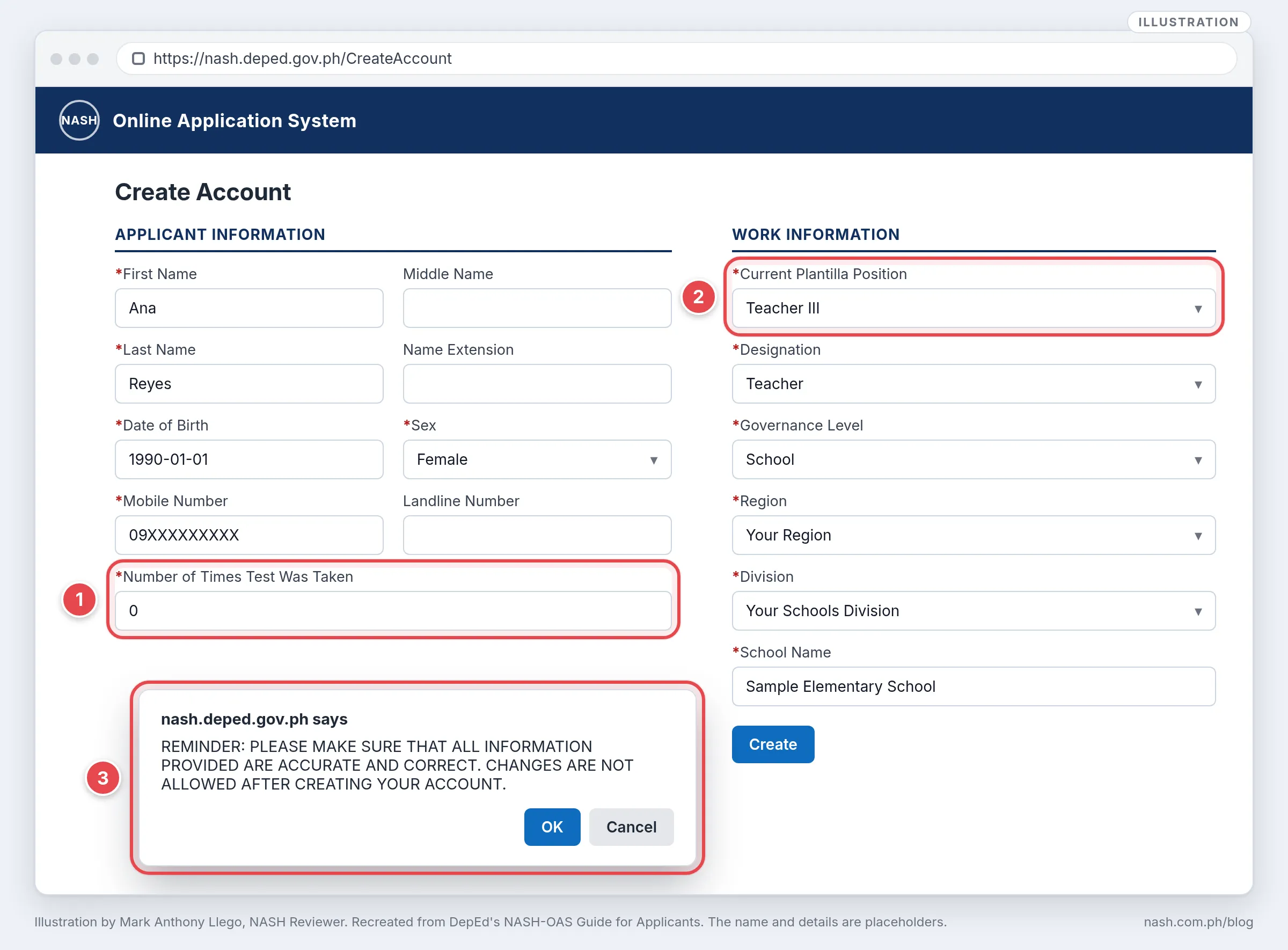
| Field | What to enter |
|---|---|
| Name | First, middle and last name, and name extension; leave the middle name or extension blank if you have none, even though the form’s hint says N/A (the guide’s instruction is to leave it blank) |
| Date of birth, sex | From the calendar and the list |
| Mobile number | In the format 09XXXXXXXXX; a landline with its area code, if you have one |
| Number of Times Test Was Taken (callout 1) | 0 for a first-time taker; otherwise the number, then the years from the guide’s list, from the 2016 Principals’ Test to “2025 B1”, NASH Batch 1 |
| Current Plantilla Position (callout 2) | From the list, or “Other Position” and type it |
| Designation | From the list |
| Governance Level | Central Office, Regional Office, Division Office or School, then the region, division and office or school name |
Click Create. The reminder in callout 3 appears; check every field, then click OK. A “Successfully Registered” message follows, and an email from noreply-nash@mail.deped.gov.ph confirms the account and lists the documents to scan (Part III.B, steps 2–5).
Type your name exactly as it appears on your service record and PRC license; if a detail is still wrong, see If something goes wrong. In Batch 2, accounts had to be created by January 9, 2026, even though documents could be uploaded until January 30 (Q22; adjusted schedule).
Step 3: Apply and upload your documents
Sign in again, open the menu on the left, and click + Apply (Part III.D, steps 1–4).
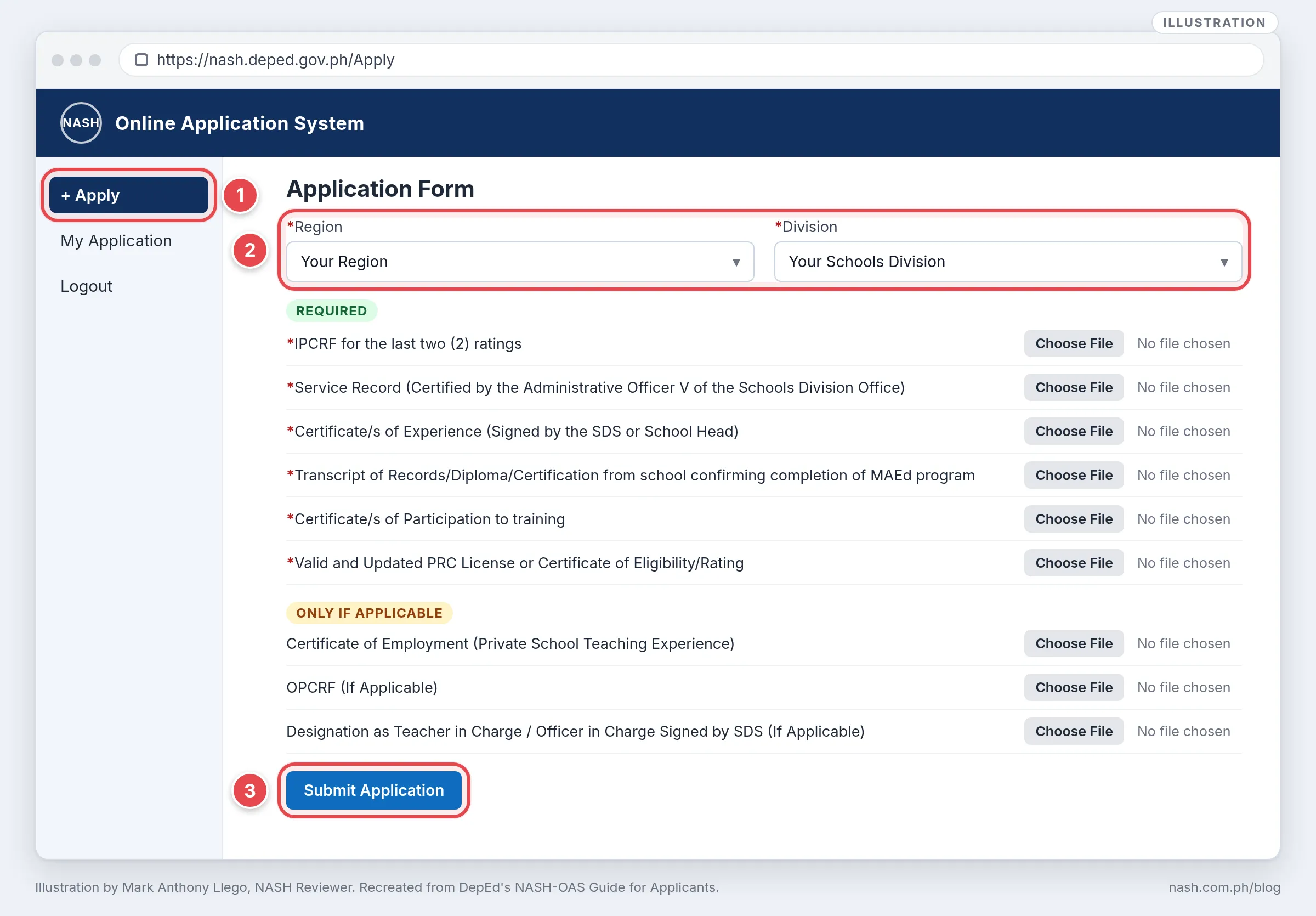
- Choose the region and division (callout 2). Your application goes to the office you select. The guide warns: “Incorrect selection may result in your application being sent to the wrong office, causing delays and leading to extra processes for proper handling” (Part III.D, step 6).
- Upload each document in its own slot, as one PDF of 10 MB or less. A file over the limit must be compressed; “For the IPCRF, only Part I (with the rating) is required” (FAQs, Q25–Q26). The last three slots are only for applicants they apply to: a certificate of employment for private school teaching, and the OPCRF and designation for teachers-in-charge, officers-in-charge and head teachers acting as school heads.
- Click Submit Application (callout 3). A message asks you “to wait for the confirmation email for at least 5 minutes before trying to resubmit as there may be Internet delays.” Click OK. “Successfully submitted your application” appears, and the dashboard opens with your application number and status (Part III.D, steps 6–9).
What happens after you submit
Your dashboard shows one of six statuses, and each change sends an email to your DepEd account (Guide for Applicants, Part IV; DM-OUHROD-2025-3318, Annex 2, Part I.C).
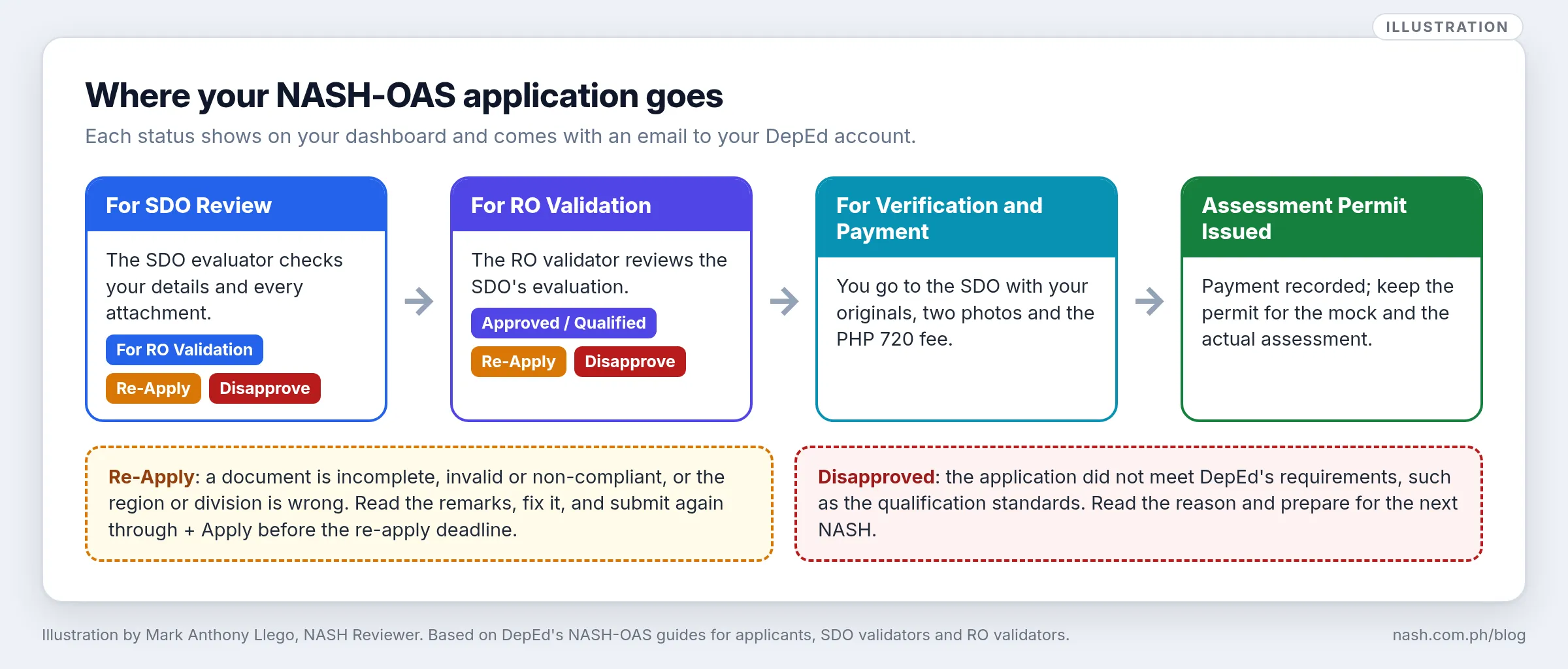
Annex 2 names the reviewers: SDO evaluators are “Schools Division Office HRMOs and other personnel authorized by the SDTWG Chair”, and RO validators are Regional Office HRMOs and others authorized by the RTWG Chair. The SDO evaluator assesses each application on the “Criteria stated in the cover memorandum”, the “Authenticity and completeness of the uploaded documents” and “Compliance with documentary requirements” (Part II.B.1–2). The validator guides show their screens (Part IV of each):
- The SDO evaluator opens every file. Evaluators click your application number, read your details “until the bottom of the page”, then open each attachment and review it.
- Three buttons, and a remarks box. Under the attachments is a box labeled “Remarks (For Re-Apply and Disapproval)” and three buttons. At the SDO they are “For RO Validation”, “Re-Apply” (for invalid or incomplete documents) and “Disapprove” (“the applicant is not qualified to take the exam”).
- The RO repeats the check. The RO validator reviews your details and attachments the same way, and the buttons read “Approved / Qualified”, “Re-Apply” and “Disapprove”.
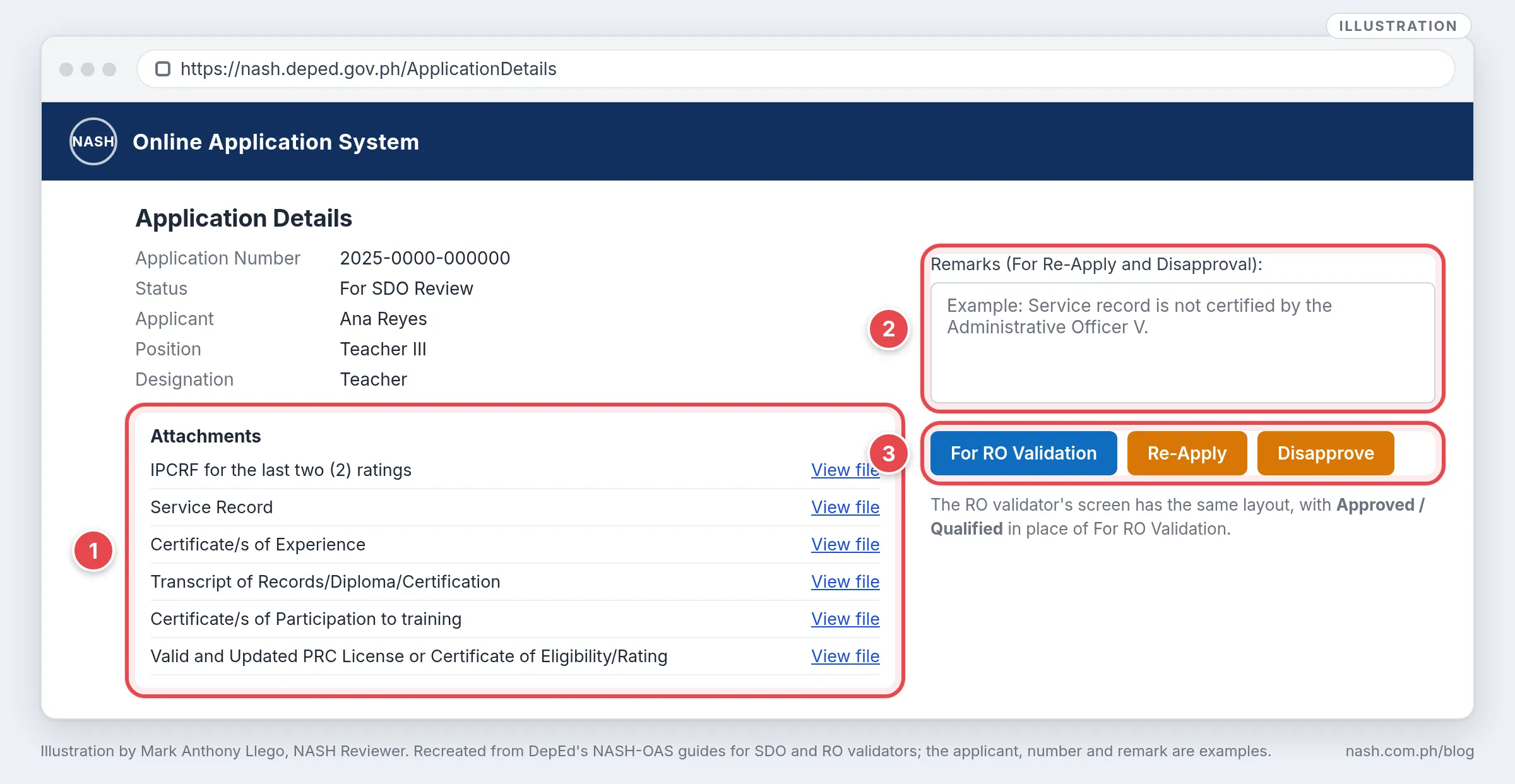
Re-Apply is a correction, not a rejection. The email asks you to log in “to view the specific documents that require compliance, as indicated in the reason for your re-apply status”, then submit again through Apply before the deadline it states (Part IV, Re-Apply). You can also ask to be returned for a wrong region, division or upload; see If something goes wrong.
Disapproved ends this round. It means “The applicant does not meet the conditions to participate in the NASH Batch 2 as stipulated in the cover memorandum”, and “The reason for the disapproval will be indicated in the remarks” (Annex 2, Part II.B.3). The guide’s sample email gives one such reason, not meeting the qualification standards for School Principal I in DepEd Order No. 019, s. 2025, and invited them to apply again “Once the requirements are met” (Part IV, Disapproved).
Step 4: Claim your Assessment Permit at the SDO
When your status reads “For Verification and Payment”, go to your SDO (Guide for Applicants, Part V; Annex 2, Parts I.D and III).
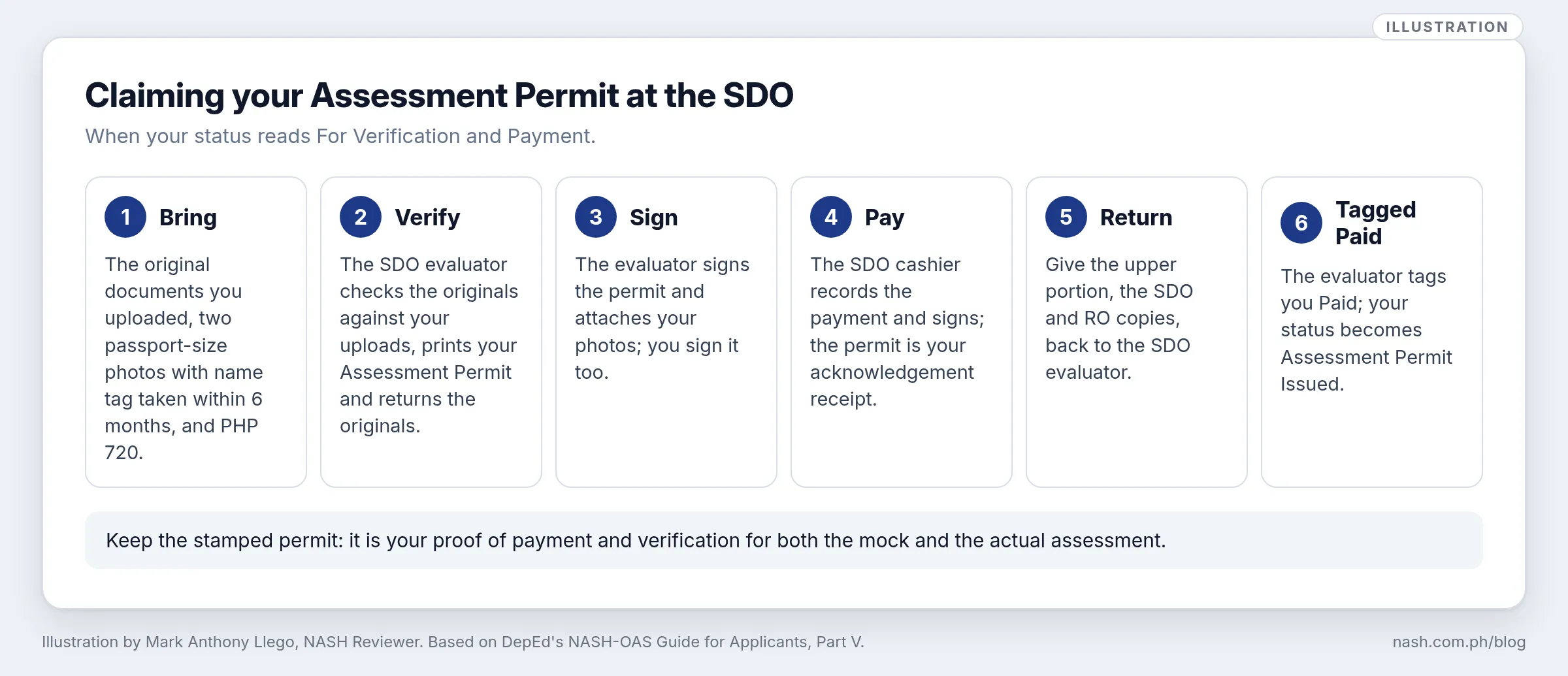
- Bring the original copies of the documents you uploaded, “Two (2) pcs passport size photos (with name tag) taken within the last 6 months”, and the fee, “Php 720.00” in Batch 2.
- The SDO evaluator verifies your originals against your uploads, prints your Assessment Permit, returns the originals, signs the permit and attaches your photos.
- Sign the permit, then pay at the SDO cashier, who records the payment and signs; the permit “will serve as your Acknowledgement Receipt”.
- Return the upper portion to the SDO evaluator. “These copies are for the SDO and RO.”
- Wait for the tag. “Once the SDO evaluator receives the signed copies, you will be tagged as Paid in the NASH-OAS,” and your status becomes “Assessment Permit Issued”.
On the evaluator’s screen, a Print COE button (the guide calls the form a Certificate of Eligibility) prints three parts: a Registration Record for the SDO, a Validation of Submitted Documents for the RO, and the Assessment Permit you keep (Annex 2, Part III.2.c). “The PAID button will automatically be enabled once the COE is printed” (Guide for SDO Validators, Part IV, steps 8–11). Keep the stamped permit “as proof of payment and verification for both the mock and actual assessment” (Guide for Applicants, Part IV). The permit email for Batch 2 also asked takers to install the Safe Exam Browser before the assessment; see How to Install Safe Exam Browser for the NASH.
The FY 2025 Batch 2 timeline
DM-OUHROD-2025-3318 set the schedule, and a December 19, 2025 advisory extended it “Due to technical difficulties experienced by applicants during the initial two (2) weeks of the application period”:
| Activity | Original schedule | Adjusted |
|---|---|---|
| Account creation | December 8, 2025 – January 5, 2026 (with the application) | Until January 9, 2026 |
| Online application and uploads | December 8, 2025 – January 5, 2026 | Until January 30, 2026 |
| Evaluation and validation | January 6–20, 2026 | January 12 – February 13, 2026 |
| Re-Apply resubmission | January 26, 2026, 5:00 PM | Not changed by the advisory |
| Last day of payment | January 30, 2026 | February 16, 2026 |
The assessment itself, first set for March 29, 2026, was later moved to May 17, 2026 (DM-OUHRODI-2026-0789). The next batch will have its own dates in its memorandum.
If something goes wrong
| Problem | What to do | Source |
|---|---|---|
| Your DepEd email does not work | Coordinate with your Schools Division Information Technology Officer (SDITO) | DM-OUHROD-2025-3318, Annex 1, item I |
| A detail in your account is wrong | Coordinate with your Regional HRMO, through your SDO evaluator, before the final list is submitted | FAQs, Q21 |
| You chose the wrong region or division | Contact your Regional HRMO through your SDO evaluator, to be tagged “Re-Apply” | FAQs, Q23 |
| You uploaded the wrong document | Contact your SDO evaluator, to be tagged “Re-Apply” | FAQs, Q24 |
| A file is over 10 MB | Compress it; for the IPCRF, upload only Part I with the rating | FAQs, Q25–Q26 |
| An upload fails | Email support.usdlms@deped.gov.ph with a screenshot of the error, or use tinyurl.com/NASHOASSupport | FAQs, Q27 |
| No confirmation email after submitting | Wait at least five minutes before submitting again; if no email arrives, report it with a screenshot to support.usdlms@deped.gov.ph or the support form | Guide for Applicants, Part III.D; FAQs, Q28 |
| An error message on submission | Clear your browser’s cached data for the last 24 hours, or use an incognito window | FAQs, Q29 |
What this means for school heads
- Sign the certifications early and accurately. Applicants need a certification, “signed by the Schools Division Superintendent or School Head”, of their experience in learning area coordination, subject area supervision, school management and operations, or instructional supervision (DM-OUHROD-2025-3318, Annex 1, item III.A.4), and LAC and INSET certificates count when “duly signed by the Schools Division Superintendent or School Head” (Guide for Applicants, Part III.B, confirmation email).
- Help teachers check their DepEd accounts weeks before the application opens, and route problems to the SDITO.
- Remind teachers-in-charge, officers-in-charge and head teachers acting as school heads to upload their OPCRF and the designation signed by the SDS.
- Warn against shortcuts. DepEd’s guide reminds applicants that falsified documents are “Serious Dishonesty” under Civil Service Commission Resolution No. 2100079, Section 3, which can lead to dismissal from the service (Part III.C).
Supporting teachers who prepare for school leadership is part of PPSSH Domain 4; see PPSSH Domain 4 for the NASH: Developing Self and Others.
Frequently asked questions
Who reviews my NASH application?
First an SDO evaluator, one of the “Schools Division Office HRMOs and other personnel authorized by the SDTWG Chair”, then an RO validator from the Regional Office HRMOs (DM-OUHROD-2025-3318, Annex 2, Part II.B.1).
What do SDO evaluators check in my NASH application?
The “Criteria stated in the cover memorandum”, the “Authenticity and completeness of the uploaded documents” and “Compliance with documentary requirements” (Annex 2, Part II.B.2). At the permit stage, they also compare your originals with your uploads (Part III.2.a).
What does “For RO Validation” mean?
The SDO evaluator has reviewed your documents and forwarded them to the Regional Office, where “The assigned RO validator will review the SDO evaluator’s assessment of the documents” (Part IV).
Why was my NASH application returned as Re-Apply?
A document was incomplete, invalid or non-compliant, or you chose the wrong region or division. The reason is in the evaluator’s remarks; fix it and submit again through Apply before the deadline in the email (Part IV).
Sources
DepEd guides
- DepEd Information and Communications Technology Service, National Assessment for School Heads (NASH) Online Application System (OAS): Guide for Applicants, FY 2025 NASH Batch 2 (January 8, 2026): Parts II–V
- The same system’s Guide for SDO Validators (January 5, 2026): Parts III–IV
- The same system’s Guide for RO Validators (January 5, 2026): Part IV
- Frequently Asked Questions (NASH Application), FY 2025 NASH Batch 2: Q21–Q29
DepEd issuances
- DM-OUHROD-2025-3318, Updates and Instructions on the Administration of the FY 2025 National Assessment for School Heads (NASH) - Batch 2, November 17, 2025: schedule of activities; Annex 1, items I and III.A.4; Annex 2, Parts I.C–D, II.B and III
- DM-OUHRODI-2026-0789, Rescheduling of the FY 2025 National Assessment for School Heads (NASH) - Batch 2, March 16, 2026
- Office of the Undersecretary for Human Resource and Organizational Development, Advisory, Adjusted Schedule of Activities for the Application, Evaluation and Validation through the NASH-OAS, December 19, 2025
- DepEd Order No. 019, s. 2025, Amended Qualification Standards for Teacher I–III, Master Teacher I–IV, and School Principal I–IV Positions, and the Qualification Standards for Newly Created Teacher IV–VII and Master Teacher V Positions, June 24, 2025
Written by Mark Anthony Llego for NASH Reviewer. Illustrations by Mark Anthony Llego, recreated from DepEd’s NASH-OAS guides; they may be reused only with written permission from support@nash.com.ph. Sources: DepEd’s NASH-OAS guides for applicants, SDO validators and RO validators; the FY 2025 Batch 2 application FAQs; DM-OUHROD-2025-3318 and its Annexes 1 and 2; the December 19, 2025 advisory; DM-OUHRODI-2026-0789; DepEd Order No. 019, s. 2025. NASH Reviewer is not affiliated with DepEd.