For both FY 2025 batches, the NASH was taken on the DepEd Learning Management System (LMS) inside Safe Exam Browser (SEB), so the program had to be on each taker’s laptop before test day. As of November 8, 2026, DepEd has not announced the next NASH (see When Is the Next NASH?); its memorandum will say whether the same setup applies. How you install SEB depends on the laptop. A DepEd-issued laptop enrolled in Microsoft Intune gets it from Company Portal. A personal Windows laptop, or a DepEd laptop not in Intune, uses the SEB installer DepEd links in its emails and guides. A Mac downloads it from safeexambrowser.org. After installing, you get the NASH settings file from your technical officer and test everything at the mock assessment.
DepEd’s permit email for FY 2025 Batch 2 put the deadline plainly: “Please make sure to install the Secure Exam Browser [sic] (SEB) on your laptop before the assessment day. If you already have SEB installed, kindly remove the old version first to avoid any issues.” DepEd’s Technical Guide for NASH Escalation Procedures, written for technical staff, sets an earlier target: “The examinee should ensure that the SEB has been downloaded the day they received the NASH Examination Email.”
Key findings
- Three installation paths. Company Portal for DepEd-issued laptops, DepEd’s installer for “Personal or DepEd Issued Laptops”, and safeexambrowser.org for macOS (NASH LMS User Guide, Sec. V.A–C).
- Check the laptop first. The guide asks for Windows 10 (version 20H2 or later) or Windows 11, or macOS 10.15 (Catalina) or later, a dual-core Intel Core i3 or AMD Ryzen 3, 4 GB of memory and 500 MB of free disk space (Sec. II.A). The current macOS release of SEB needs macOS 12 or later (safeexambrowser.org, as of November 8, 2026).
- Remove an old version. The Batch 2 permit email asked takers who already had SEB to “remove the old version first”.
- The settings file comes from the technical team. Once SEB is installed, “Kindly ask for assistance from your Proctor/Roving IT for assistance on the SEB Settings File” (Sec. V.B, step 4).
- The mock is the test run. The Technical Guide’s fix for a wrong region, or SEB not going to the LMS, is to download the correct SEB settings again and apply them, and its prevention is to check them “During the Mock assessment” (Sec. IV). In Batch 2, “The same SEB settings will be applied during the actual assessment” (May 13, 2026 debriefing).
- You never type the SEB password. “At exactly 8:30 a.m, the facilitators shall directly input the SEB password onto the takers’ devices” (the Batch 2 Administration Guide for Assessment Facilitators, Part I.B, item 8), as DepEd Memorandum No. 069, s. 2025, Encl. 5 had set for Batch 1.
Which installation path is yours
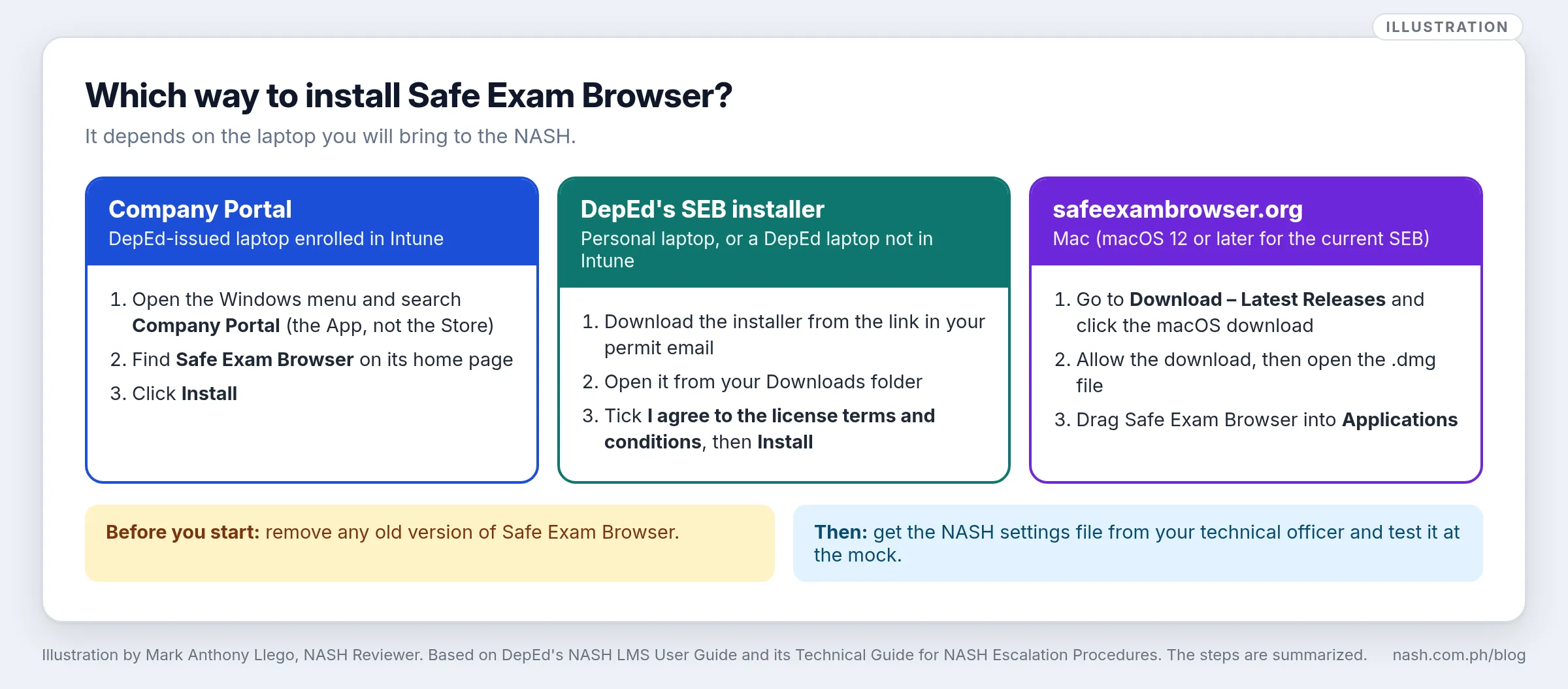
| Your laptop | How to install | Label in the guide |
|---|---|---|
| DepEd-issued, enrolled in Intune | Company Portal | “Administrator Access Required” |
| Personal Windows laptop, or a DepEd laptop not in Intune | DepEd’s SEB installer | “No Administrator Access Required” |
| Mac | safeexambrowser.org | None |
Source: NASH LMS User Guide, March 2026 edition, Sec. V.A–C; Technical Guide for NASH Escalation Procedures, Sec. IV.
Whatever the label, Windows may ask for an administrator’s approval when you click Install; the guide’s own picture shows the administrator shield on the button. On a laptop where you cannot give that approval, ask your technical officer.
Not sure whether a DepEd laptop is in Intune? The Technical Guide’s test is to search for Company Portal in the Windows search box: “For DepEd-issued laptop, check first if it is enrolled in InTune [sic] by searching the Company Portal at the windows search box. Make sure it is not under the Store category.” If the app is there, use it; if not, use the installer.
Whichever laptop you choose, the permit email set two more conditions: “Use a laptop only (mobile devices are not permitted)”, and the laptop’s “User Rights: Must be able to install SEB and remove restricted applications”.
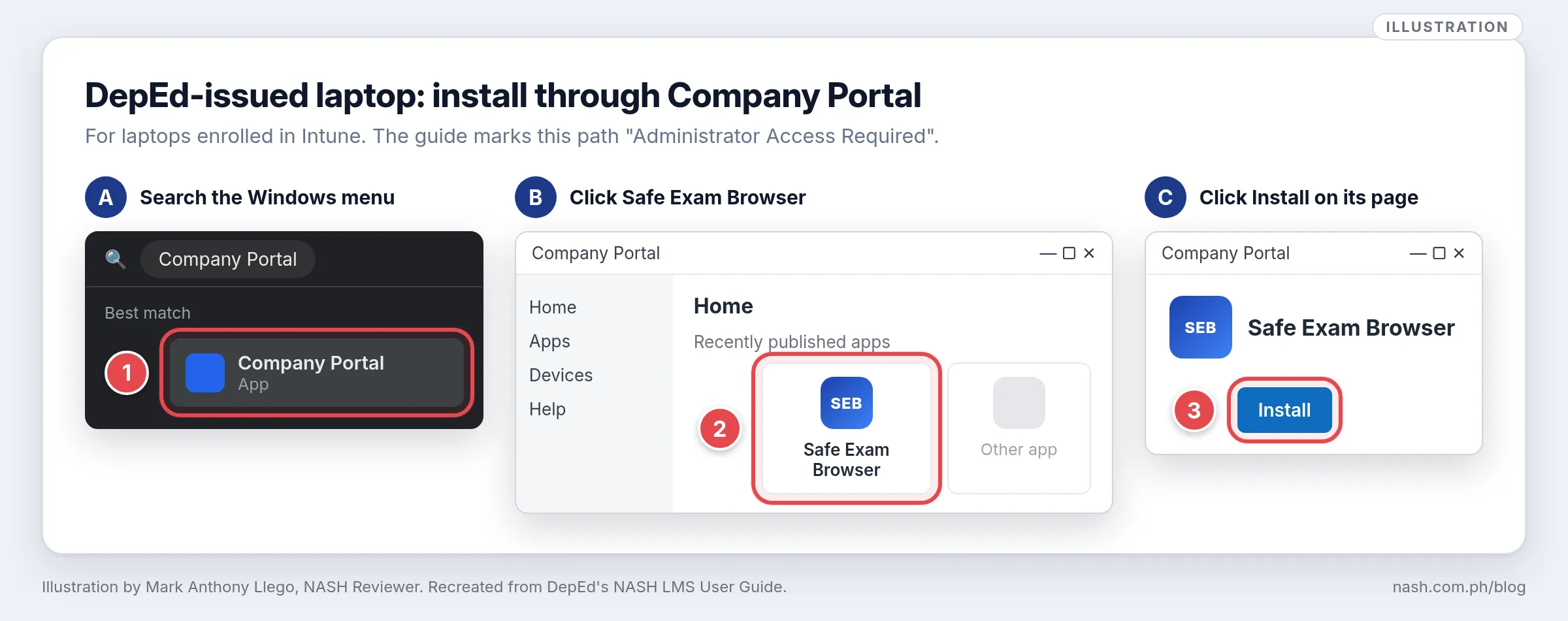
Install on a DepEd-issued laptop: Company Portal
- Click the Windows icon on the taskbar.
- Type Company Portal in the search bar and choose Company Portal (App) from the results, not a Store result.
- On Company Portal’s home page, find Safe Exam Browser (it was listed under “Recently published apps”) and click it.
- Click Install, then follow the instructions.
Source: NASH LMS User Guide, Sec. V.A; Technical Guide, Sec. IV.
If Company Portal does not open or Safe Exam Browser is not in it, tell your Division Information Technology Officer (DITO) early. SEB installation is the first item on the technical officer’s list for test day (Technical Guide, Sec. III), but you should not leave it for then.
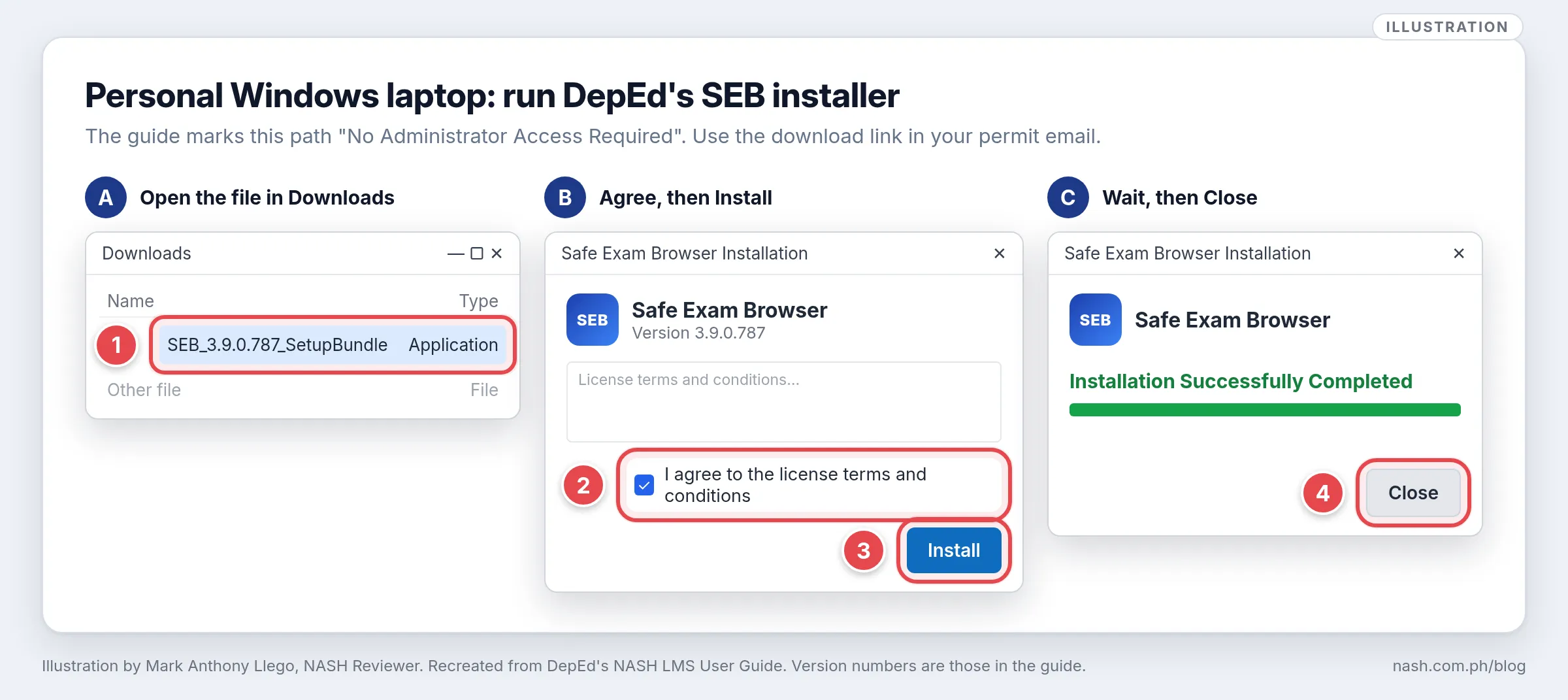
Install on a personal Windows laptop: DepEd’s installer
- Download the installer from the link DepEd gives. For Batch 2, the permit email gave bit.ly/NASH_SEB_INSTALLER, and the LMS User Guide and the Technical Guide gave tinyurl.com/NASH-SEB-Installer. For the next NASH, use the link in your own permit email.
- Open the file from your Downloads folder. In the Batch 2 guide, it was named SEB_3.9.0.787_SetupBundle.
- Tick “I agree to the license terms and conditions” to turn on the Install button, then click Install.
- Wait for the setup to finish. When the window says “Installation Successfully Completed”, click Close.
Source: NASH LMS User Guide, Sec. V.B; Technical Guide, Sec. IV.
On Windows, use only the installer DepEd links, or the version your technical officer names. A copy from anywhere else may be a different version or not SEB at all; after the Batch 2 mock, DepEd directed regional offices and technical officers “to ensure that all takers install the correct and updated version of SEB” (May 13, 2026 debriefing).
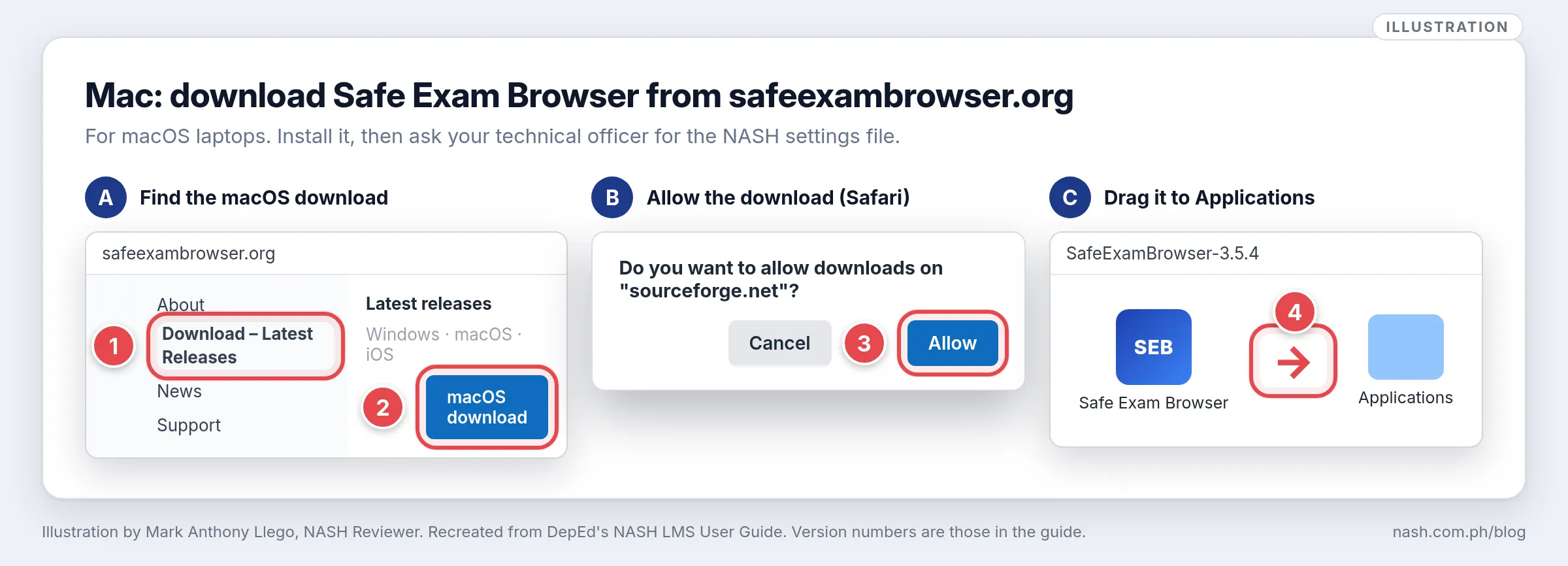
Install on a Mac
- In your browser, go to safeexambrowser.org.
- In the menu on the left, click Download – Latest Releases, scroll down, and click the macOS download.
- In Safari, a window asks whether to allow downloads from the download site (“sourceforge.net” in the guide’s pictures; the site now links the macOS download to its GitHub project page). Click Allow.
- Open your Downloads and click the .dmg file (SafeExamBrowser-3.5.4.dmg in the guide).
- In the window that opens, drag the Safe Exam Browser icon into the Applications folder.
Source: NASH LMS User Guide, Sec. V.C.
The LMS User Guide lists macOS 10.15 or later, but the current macOS release on safeexambrowser.org, SEB 3.7.2, is for macOS 12 and later (as of November 8, 2026), so a Mac on macOS 10.15 or 11 cannot run it. The Batch 2 permit email listed only “Windows 10 or higher”. If you plan to bring a Mac, confirm with your division’s technical officer before the mock that the settings file works on it.
After installing: the settings file and the mock
Installing SEB is only half the setup. The installer path and the Mac path both end the same way: “Kindly ask for assistance from your Proctor/Roving IT for assistance on the SEB Settings File” (Sec. V.B, step 4; Sec. V.C, step 7). The Company Portal steps stop at Install, but SEB needs the settings file however it was installed (Technical Guide, Sec. IV).
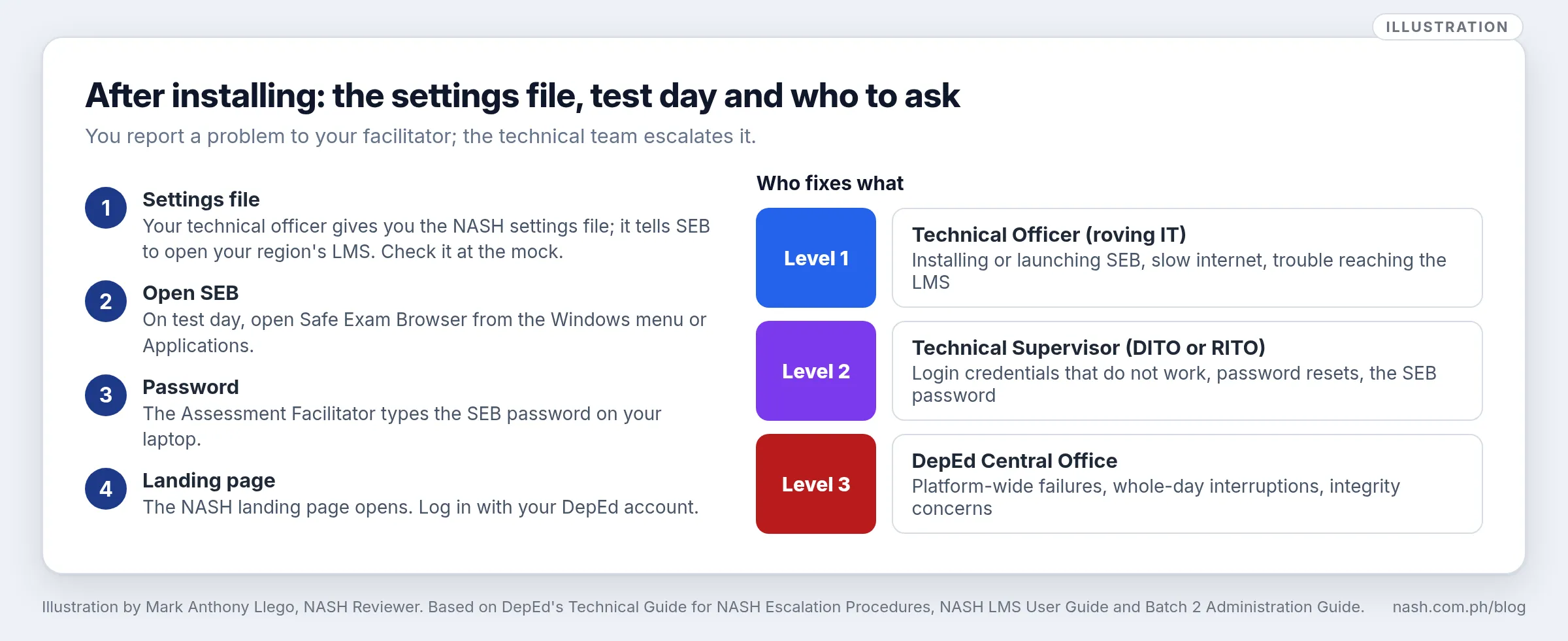
- Get the settings file at or before the mock. The Technical Guide’s prevention for a wrong-settings error is: “During the Mock assessment, ensure that the correct SEB Settings are downloaded from https://tinyurl.com/NASH-SEB-Settings.” The error looks like this: “Wrong Region selected or the system does not redirect to the LMS.” The fix is to “Redownload the SEB Settings and apply them” (Sec. IV).
- Treat the mock as the test run. DepEd holds it “to give participants the opportunity to test their devices and become familiar with the assessment platform and procedures” (DM-OUHROD-2025-3318). Bring the same laptop you will use on test day. For Batch 2, DepEd told monitors that the settings “should have already been configured on the NASH taker’s device beforehand”, and listed “Installation and configuration concerns on the SEB” first among the mock’s issues (May 13, 2026 debriefing).
- On test day, open SEB from the Windows menu. “After opening the SEB application, a window will launch the LMS NASH landing page. If the LMS NASH landing page does not open, seek assistance from your Proctor/Technical Officer” (LMS User Guide, Sec. VI, steps 1–2). In Batch 2, the facilitators’ script had takers open SEB with “the downloaded SEB setting provided by your Information Technology Officer (ITO)”, so keep that file where you can find it (the Batch 2 Administration Guide for Assessment Facilitators, Part II.B, item 1). The facilitator types the SEB password; then you log in as the NASH LMS login guide shows.
If something goes wrong
On test day you report to your Assessment Facilitator, who calls the technical team. The Technical Guide sets three levels (Sec. III):
| Level | Who | What they handle |
|---|---|---|
| 1 | Technical Officer, or the Division Information Technology Officer (DITO) | SEB installation and launching, slow internet, difficulty in accessing the LMS |
| 2 | Technical Supervisor (DITO or RITO) | Login credentials that do not work, password resets, the SEB password |
| 3 | DepEd Central Office | Whole-day interruptions, platform-wide failures, integrity concerns, removal of multi-factor authentication for a login |
| Problem | What to do | Source |
|---|---|---|
| SEB is not installed on test day | The technical officer installs it; avoid this by downloading it the day the examination email arrives | Technical Guide, Sec. IV |
| SEB opens the wrong region or no LMS page | Download the correct SEB settings again and apply them | Technical Guide, Sec. IV |
| The NASH landing page does not open | Ask your proctor or technical officer | LMS User Guide, Sec. VI |
| Company Portal does not list SEB | Use DepEd’s installer instead, or ask your DITO | LMS User Guide, Sec. V.B |
Disconnections, the quiz itself, and what the facilitator does when SEB must be reopened are in NASH Safe Exam Browser (SEB) and DepEd LMS: Test-Day Guide.
What this means for school heads
- Check the school’s laptops early. A teacher borrowing a school laptop needs one that meets the specifications and on which SEB can be installed. A DepEd laptop not in Intune can still use DepEd’s installer.
- Bring the DITO in before the mock. Company Portal problems, Intune enrollment and settings files belong to the division’s technical team, and they are easier to fix in the weeks before the assessment than on the day.
- Give teachers time to practice. Let applicants install and open SEB on the laptop they will bring, then test it at the mock.
Supporting teachers as they prepare for school leadership is part of PPSSH Domain 4; see PPSSH Domain 4 for the NASH: Developing Self and Others.
Frequently asked questions
Where do I download Safe Exam Browser for the NASH?
Use the link in your NASH permit email. For FY 2025 Batch 2, the email gave bit.ly/NASH_SEB_INSTALLER, and the LMS User Guide and the Technical Guide gave tinyurl.com/NASH-SEB-Installer. A DepEd laptop enrolled in Intune installs it from Company Portal, and a Mac from safeexambrowser.org (LMS User Guide, Sec. V).
Can I install Safe Exam Browser on a Mac for the NASH?
The LMS User Guide gives a macOS path through safeexambrowser.org (Sec. V.C). Its minimum is macOS 10.15, but the current macOS release of SEB needs macOS 12 or later (as of November 8, 2026). The Batch 2 permit email listed only Windows 10 or higher, so confirm with your technical officer that the settings file works on your Mac before the mock.
What if Safe Exam Browser is already on my laptop?
Remove the old version first, then install the one DepEd links. The Batch 2 permit email asked takers to “remove the old version first to avoid any issues.”
Where do I get the SEB settings file for the NASH?
From your proctor or roving IT, the technical officer (LMS User Guide, Sec. V.B). For Batch 2, the Technical Guide also gave tinyurl.com/NASH-SEB-Settings and told technical staff to check the settings at the mock (Sec. IV).
Who types the SEB password?
The Assessment Facilitator, on each taker’s laptop, at 8:30 a.m. in Batch 2 (the Batch 2 Administration Guide for Assessment Facilitators, Part I.B, item 8; DM 069, s. 2025, Encl. 5).
Sources
DepEd guides
- DepEd Information and Communications Technology Service, National Assessment for School Heads (NASH) – Learning Management System (LMS) User Guide, FY 2025, March 2026 edition: Secs. II.A, V.A–C and VI
- DepEd Information and Communications Technology Service, Escalation Procedures and Technical Assistance Guide for the National Assessment for School Heads (NASH) (Technical Guide for NASH Escalation Procedures), FY 2025 Batch 2: Secs. III–IV
- DepEd, NASH Administration Guide for Assessment Facilitators, FY 2025 Batch 2 (final copy): Part I.B, items 6 and 8; Part II.B, item 1
- DepEd, Virtual Debriefing Session for CO Monitors and Assessment Site Personnel on the Conduct of the Mock Examination, FY 2025 NASH Batch 2, slides, May 13, 2026
- Safe Exam Browser, Download – Latest Releases, safeexambrowser.org (viewed November 8, 2026): SEB 3.7.2 for macOS
- NASH-OAS “Assessment Permit Issued” email to FY 2025 Batch 2 takers, as printed in DepEd’s NASH-OAS Guide for Applicants (January 8, 2026), Part IV
DepEd issuances
- DepEd Memorandum No. 069, s. 2025, Administration of the National Assessment for School Heads for Fiscal Year 2025, August 11, 2025: Encl. 5
- DM-OUHROD-2025-3318, Updates and Instructions on the Administration of the FY 2025 National Assessment for School Heads (NASH) - Batch 2, November 17, 2025
Written by Mark Anthony Llego for NASH Reviewer. Illustrations by Mark Anthony Llego, recreated from DepEd’s NASH LMS User Guide and Technical Guide; they may be reused only with written permission from support@nash.com.ph. Sources: DepEd’s NASH LMS User Guide (March 2026); the Technical Guide for NASH Escalation Procedures; the Batch 2 permit email; the Batch 2 Administration Guide and May 13, 2026 debriefing; safeexambrowser.org; DepEd Memorandum No. 069, s. 2025; DM-OUHROD-2025-3318. NASH Reviewer is not affiliated with DepEd.