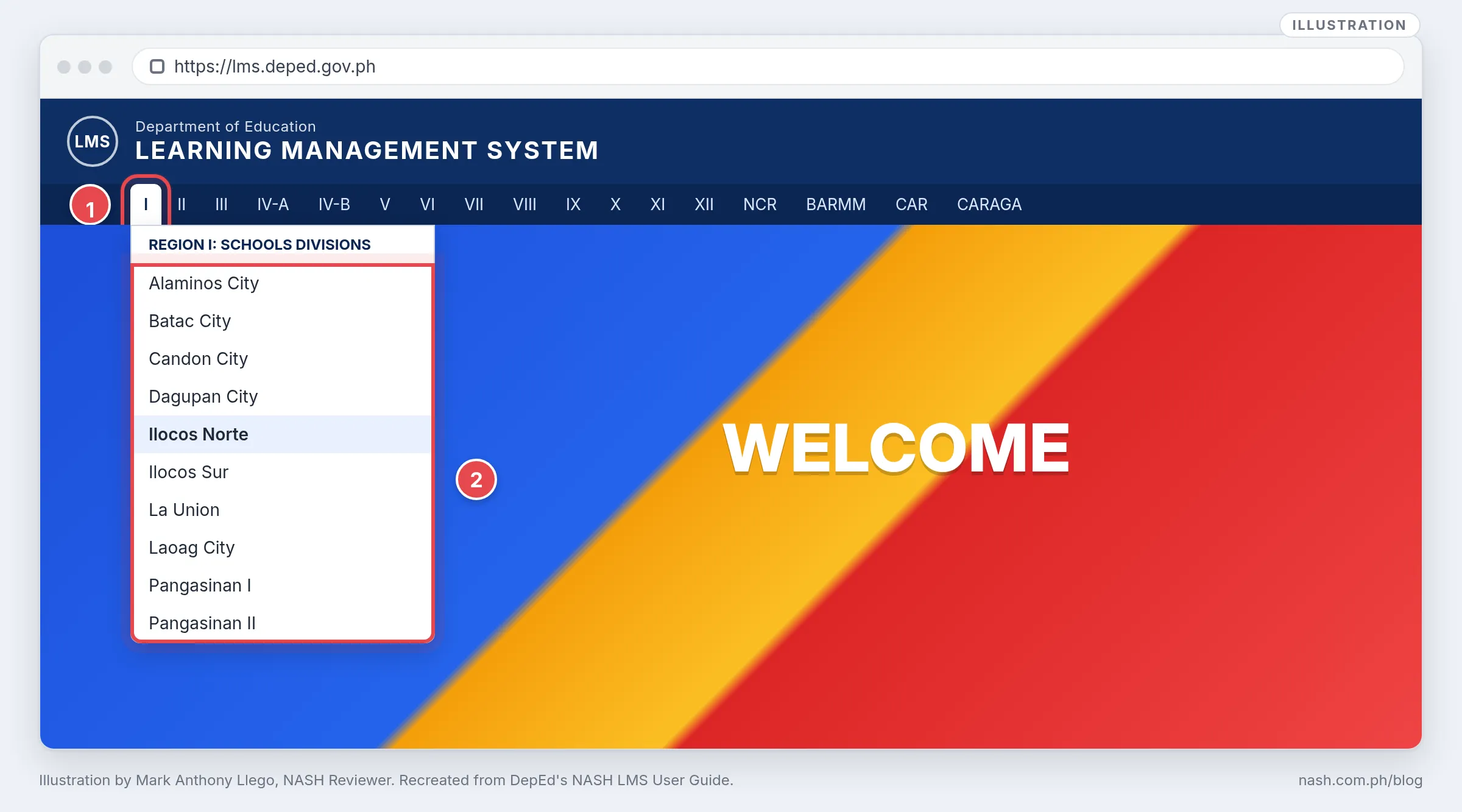
The NASH is taken on the DepEd Learning Management System (LMS) at lms.deped.gov.ph, and you sign in with your DepEd account. Open the site, choose your region and then your Schools Division Office (SDO), and click Sign In using DepEd Google Account, which DepEd recommends, or Sign In using DepEd Microsoft Account. Then complete your LMS profile. DepEd reminded takers to log in and update their profiles “to prevent any issues during enrollment in the NASH” (DM-OUHRODI-2026-0789), and after the results your Individual Certificate of Rating (ICOR) stays hidden while your NASH Examinee Number field is empty.
DepEd’s Information and Communications Technology Service (ICTS) sets out these steps in its NASH LMS User Guide for the FY 2025 NASH (March 2026 edition, used for Batch 2), and a separate DepEd guide covers the ICOR. The User Guide’s reminder: “Users must be able to access and log in to the LMS to ensure successful enrollment in the National Assessment for School Heads (NASH).”
Every screen below is an illustration by Mark Anthony Llego, redrawn from DepEd’s guides. It is not a screenshot of the live site, and the personal details in it are placeholders.
Key findings
- One site, your DepEd account. The NASH runs on lms.deped.gov.ph, and the guide’s account requirement is “An active DepEd Google Account that is currently in use” (NASH LMS User Guide, Sec. II.C).
- Region and division first. On the home page you “hover over the Regions above and choose your assigned Division” before the login page opens (Sec. III, step 2).
- Google is the preferred sign-in. The guide offers two buttons, “with the DepEd Google Account being preferred”. The Microsoft 365 route sends a verification code to your registered phone (Sec. VI, step 4).
- Your profile comes next. The Demographics section holds your User Role, SDO, school, NASH Examinee Number and current position (Sec. IV; ICOR access guide, step 4). You cannot fix your own name: the guide sends you to your Division Information Technology Officer (Sec. IV). After the Batch 2 results, takers could change only their position; “Other profile details cannot be edited, as these are based on official data from the regions” (DepEd Memorandum No. 044, s. 2026, para. 7).
- The certificate needs your examinee number. The Certificate of Rating stays hidden unless the NASH activity is marked complete and “Your NASH Examinee Number (Batch 2) is not empty” (ICOR access guide, step 6). For Batch 2, a missing number was corrected through DepEd’s online form, not typed in by the taker (DM 044, s. 2026, para. 7).
- On test day the LMS opens in Safe Exam Browser. The facilitator types the Safe Exam Browser password, and the NASH landing page gives three ways to log in: the Log in button, the NASH image, or the course link (Sec. VI, step 3).
Before you log in
| You need | What DepEd says | If you do not have it |
|---|---|---|
| A working DepEd account | “An active DepEd Google Account that is currently in use” (NASH LMS User Guide, Sec. II.C) | Coordinate with your Schools Division Information Technology Officer (SDITO), who can activate or create it (DM-OUHROD-2025-3318, Annex 1, item I; FAQs, Q20) |
| Your password | “the same one you used to login to MS Teams and other Google/Microsoft applications” (Sec. III, step 5) | See If you forgot your password below |
| A laptop and a stable connection | A laptop with “any pre-installed and updated internet browser” and a connection of at least 5 Mbps up and down (Sec. II.A–B) | The full specifications are in NASH Safe Exam Browser (SEB) and DepEd LMS: Test-Day Guide |
The Batch 2 instructions put the account first: “Ensure that your DepEd email account is active, as it will be used for accessing the application and assessment portals” (DM-OUHROD-2025-3318, Annex 1, item I). Log in well before the mock assessment. Before FY 2025 Batch 2, DepEd reminded “all NASH takers … to log in to the Learning Management System (LMS) and update their profiles to prevent any issues during enrollment in the NASH” (DM-OUHRODI-2026-0789).
How to log in to the DepEd LMS, step by step
Step 1: Open the site and choose your region and division
Type https://lms.deped.gov.ph in your browser’s address bar and press Enter. On the home page, point to your region in the menu bar and choose your Schools Division from the list (Sec. III, steps 1–2).
Step 2: Sign in with your DepEd account
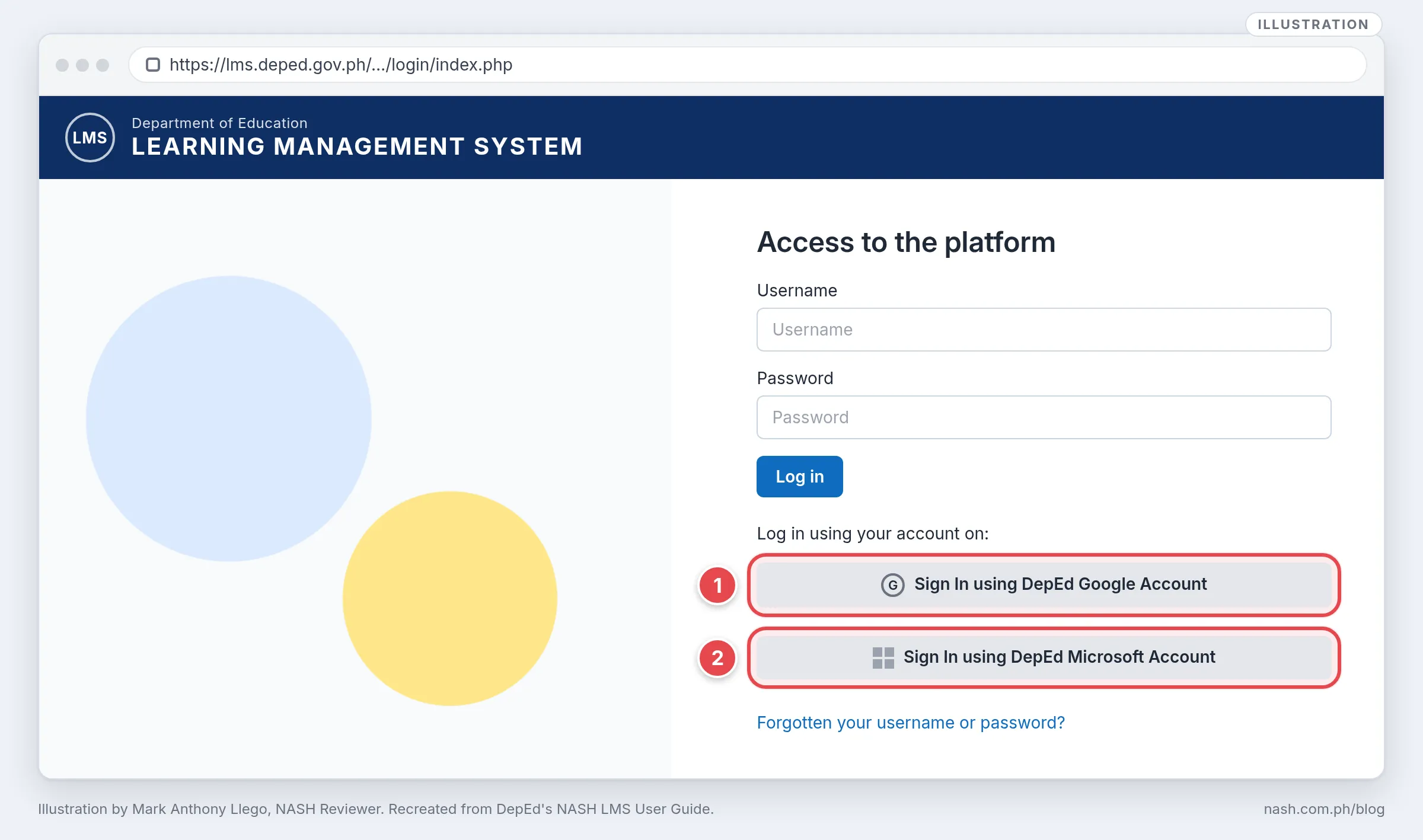
The login page, “Access to the platform”, opens. Under “Log in using your account on:” are two buttons (Sec. III, steps 3–5; Sec. VI, step 4):
- Sign In using DepEd Google Account. The guide’s preferred option. Enter your DepEd account username and your password.
- Sign In using DepEd Microsoft Account. Enter your DepEd Microsoft 365 account, the one you use for MS Teams, and your password, then click Next. A verification code is sent to your registered mobile device, so keep it connected to the internet. Enter the code and click Sign in.
The guide also warns: “Ensure that the DepEd LMS – ‘Region’ shown on the login page matches the Region you represent and are enrolled in” (Sec. VI, note). If another region shows in your own browser, return to lms.deped.gov.ph and choose your region and division again. In Safe Exam Browser, the region comes from the SEB settings file: tell your facilitator so the technical officer can apply the correct file (Test-Day Guide).
If you forgot your password
The guide lists these options for a forgotten Microsoft 365 or Google password (Sec. III, note):
- “Use your DepEd Google Account to log in, which is recommended.”
- Self-service reset: click “Forgot my password” and follow the steps.
- Email request: send a reset request to support.email@deped.gov.ph.
- ICT help: contact your regional or SDO ICT office.
Complete your LMS profile
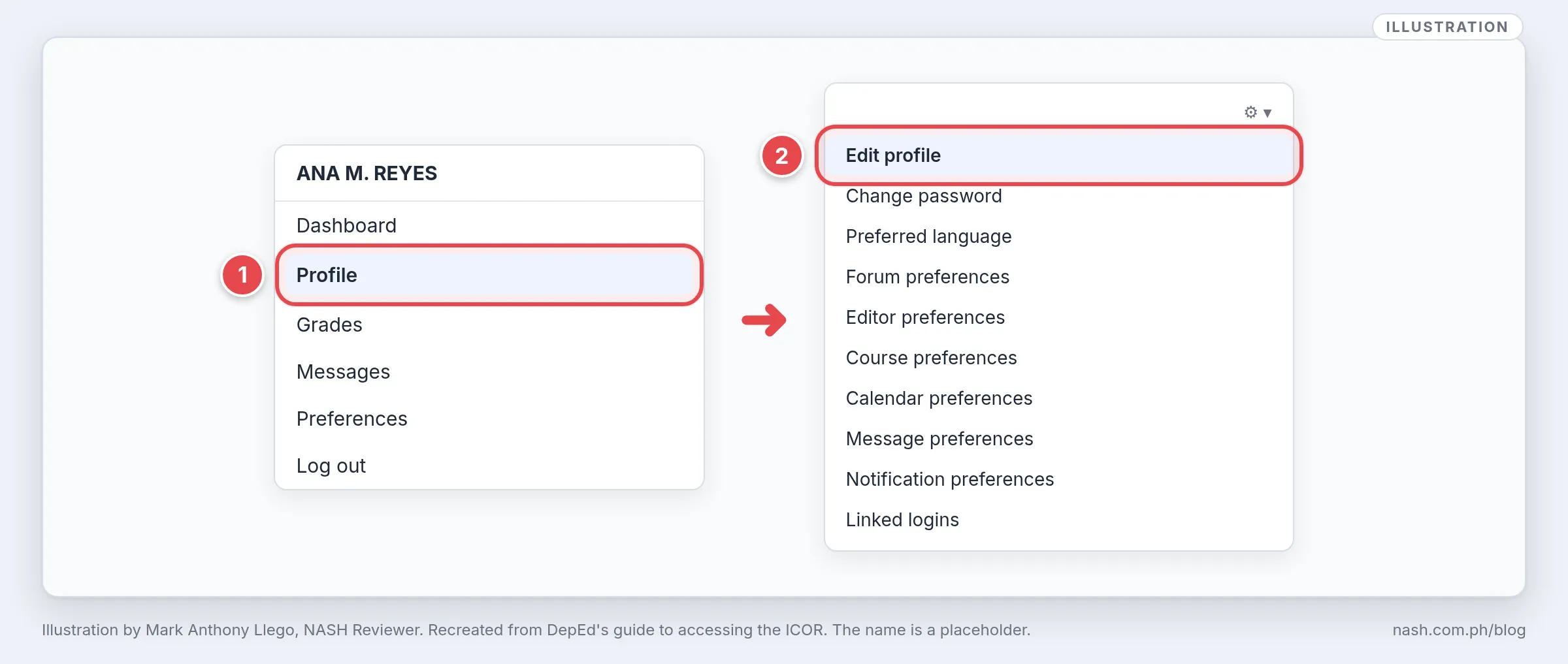
After your first login, the LMS opens your profile. Later you reach it from the menu under your name: Profile, then the gear menu, then Edit profile (ICOR access guide, step 3).
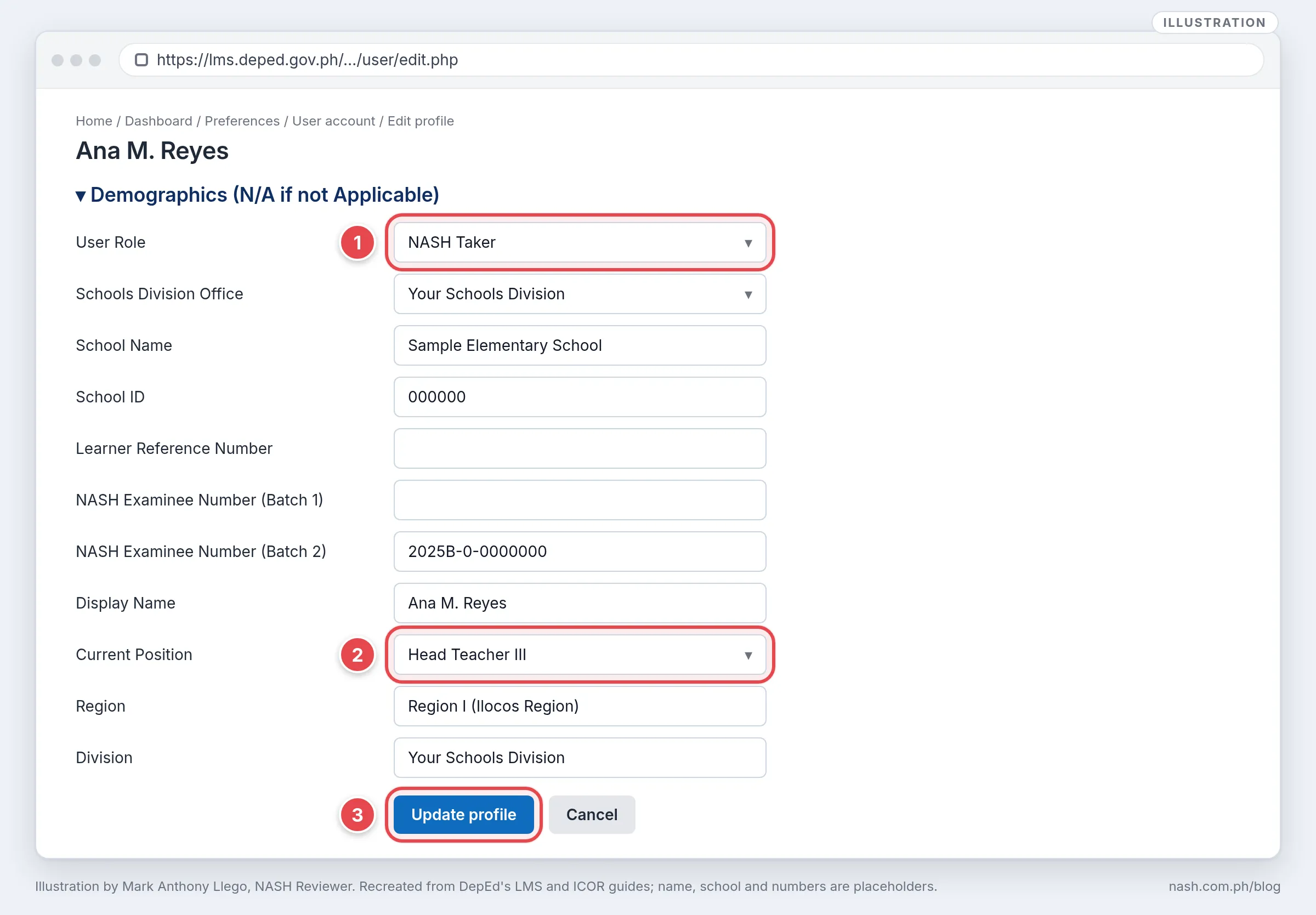
Fill in the profile as the guide describes (Sec. IV):
- General section. Fields with a red mark are required. You cannot change your own name: “To update your name details, please contact your respective DITO, who will coordinate with the ICTS-SDD on your behalf.” DITO is the Division Information Technology Officer.
- Profile picture. Drag a photo into the upload space or click it to choose a file, then click “Upload this file”. The guide asks for “a recent photo taken within the past six (6) months”.
- Demographics. Scroll down to “Demographics (N/A if not Applicable)”, select the appropriate User Role, fill in the other fields, and click Update profile. The LMS then returns you to its home page.
Which User Role and position to choose
DepEd’s instructions on the Demographics fields changed during FY 2025:
| When | Instruction | Source |
|---|---|---|
| Before Batch 1 (August 2025) | Make sure “Non-teaching Personnel” is in the User Role field | NASH LMS User Guide, August 2025 edition, Sec. IV, step 6 |
| After the Batch 1 results (October 2025) | To ensure accurate data on the Individual Certificate of Rating (ICR), change User Role to “NASH Taker”, select the correct SDO, and enter the examinee number provided by your region | DepEd Memorandum No. 097, s. 2025, para. 8 |
| Before Batch 2 (March 2026) | “select the appropriate user role” and complete the remaining fields | NASH LMS User Guide, March 2026 edition, Sec. IV, steps 6–7 |
| After the Batch 2 results (July 2026) | Choose your position title from the list so the correct title appears on the ICOR; “Other profile details cannot be edited” | DepEd Memorandum No. 044, s. 2026, para. 7; ICOR access guide, steps 4–5 |
Follow the instruction for the round you are in; the next NASH memorandum or guide may give its own. As of November 8, 2026, DepEd has not scheduled the next NASH; see When Is the Next NASH?. For Batch 2, DepEd’s ICOR guide said: “All information reflected in your profile is based on the official data submitted by your respective Region,” and asked that corrections be coordinated with your SDO and/or Regional NASH Coordinator (ICOR access guide, reminder).
On test day: logging in through Safe Exam Browser
At the assessment site you do not type the address. You open Safe Exam Browser (SEB) from your laptop’s Start menu, and it opens the NASH landing page (Sec. VI, steps 1–2). SEB first asks for a password, which you never type yourself: “At exactly 8:30 a.m, the facilitators shall directly input the SEB password onto the takers’ devices” (Batch 2 Administration Guide for Assessment Facilitators, Part I.B, item 8), as DepEd Memorandum No. 069, s. 2025, Encl. 5 had set for Batch 1. If the landing page does not open, ask your proctor or technical officer. The landing page gives three ways to log in (Sec. VI, step 3):
- the Log in button at the upper right;
- the NASH image; or
- the link “National Assessment for School Heads”.
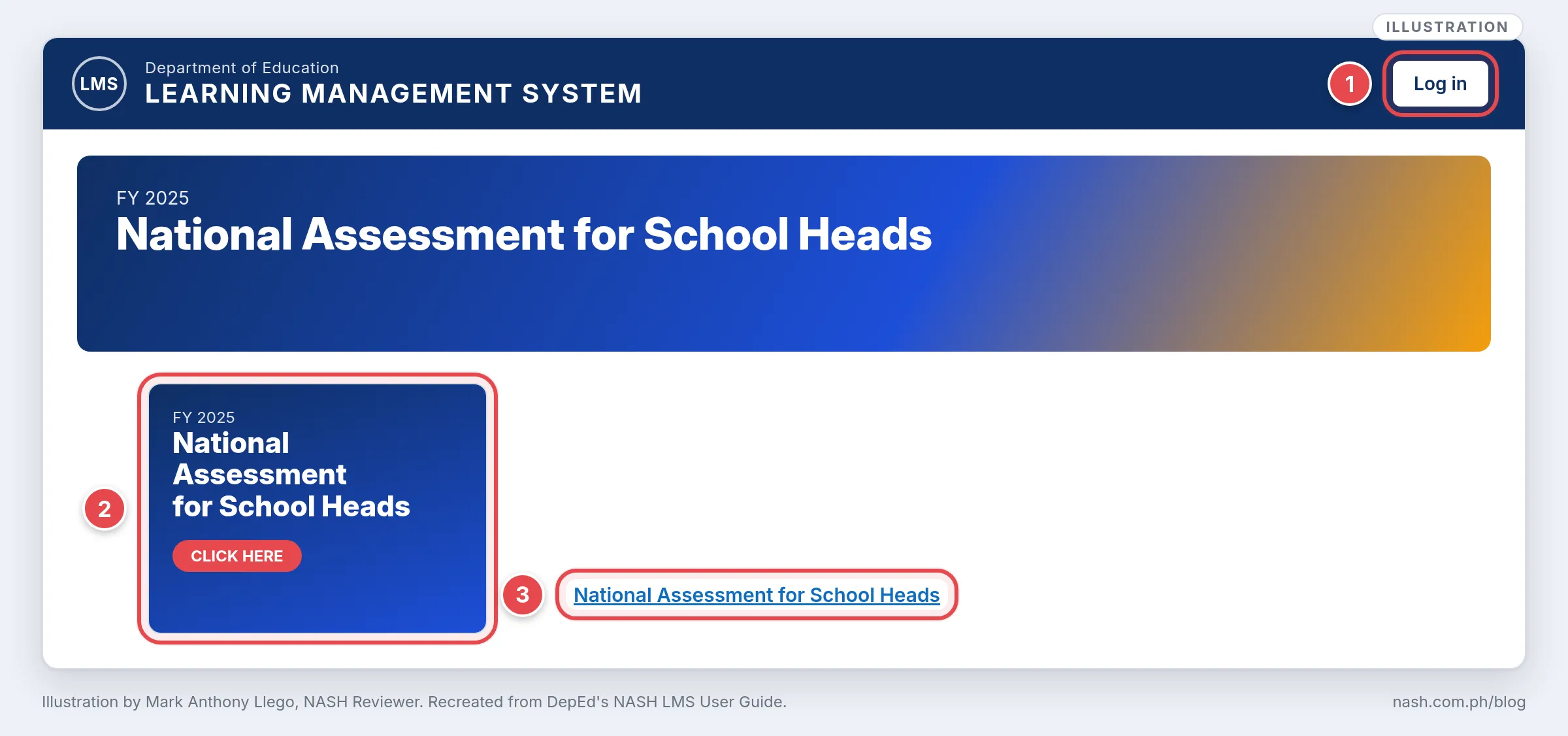
Then sign in as in Step 2, and check that the region on the login page is yours.
Open the mock test or the assessment
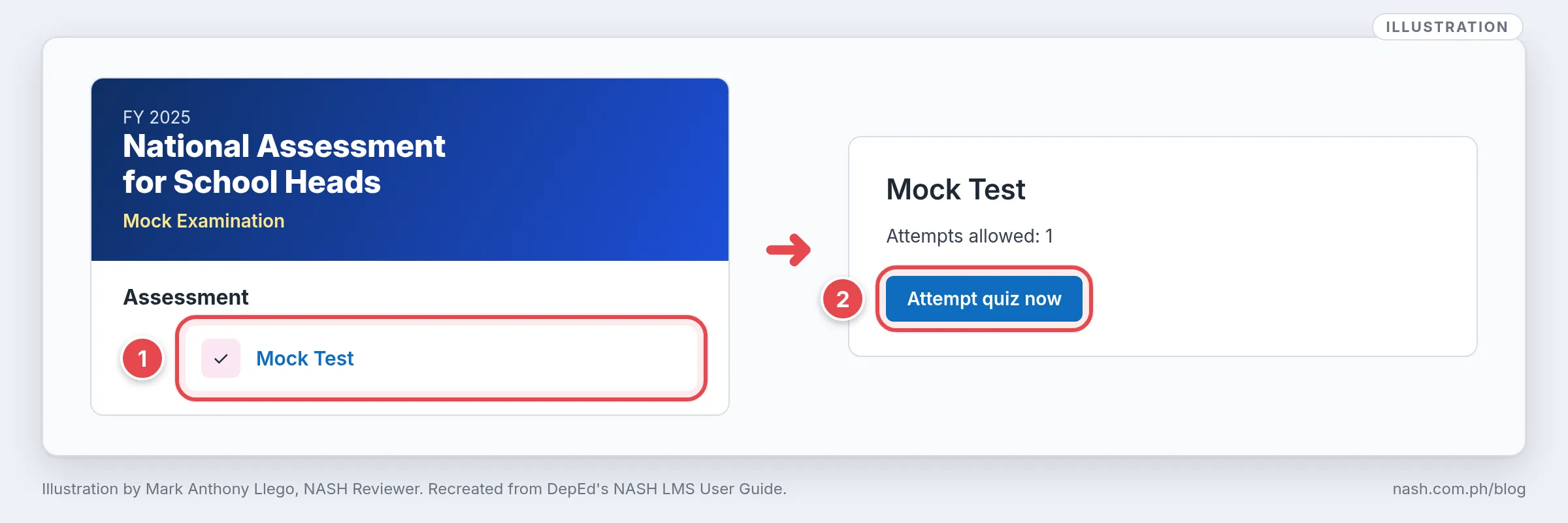
After you sign in through Safe Exam Browser, the NASH course page opens. At the facilitator’s signal, click the test link under Assessment, then Attempt quiz now (Sec. VI, steps 5–6). The guide’s Mock Test page shows “Attempts allowed: 1”, and once you submit and answer the evaluation form, “you will no longer be able to make another attempt” (Sec. VIII, step 8).
How to Install Safe Exam Browser for the NASH covers installing it and its settings file; the assessment itself and what to do if you are disconnected are in NASH Safe Exam Browser (SEB) and DepEd LMS: Test-Day Guide.
Download your Certificate of Rating after the results
The ICOR comes through the same LMS account. For FY 2025 Batch 2, DepEd’s guide gives these steps (ICOR access guide, steps 1–7):
- Log in to the DepEd LMS account you used for the NASH.
- Open your profile and click Edit profile.
- Under Demographics, select your Current Position, then click Update profile. This sets the title printed on your ICOR (DM 044, s. 2026, para. 7).
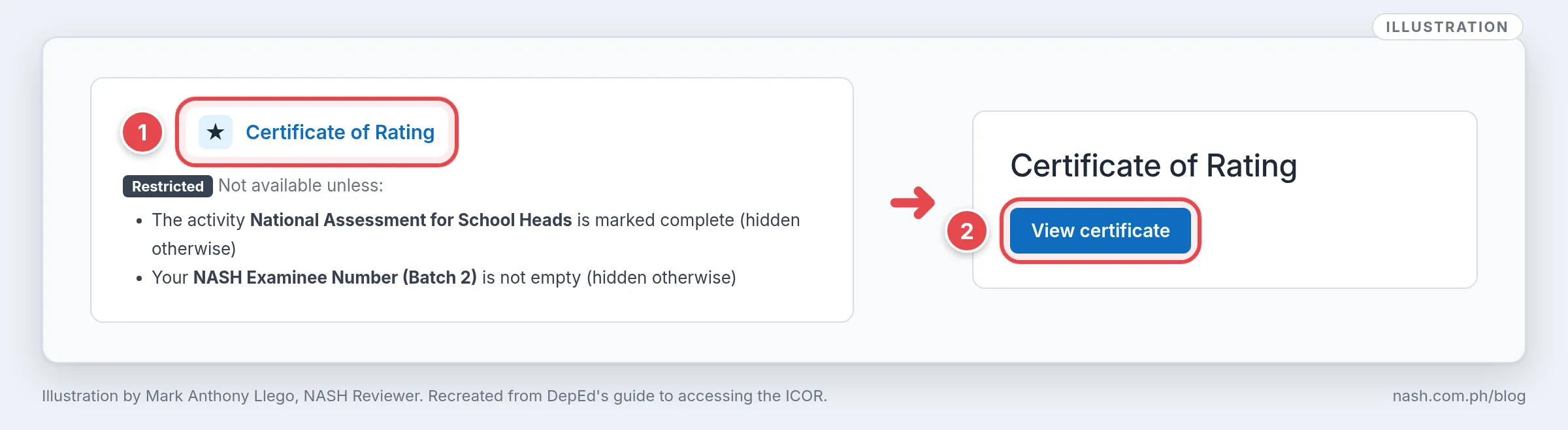
- Go back to your dashboard, open the NASH Batch 2 course, and click Certificate of Rating.
- Click View certificate to download your ICOR.
The certificate is hidden until two conditions are met: “The activity National Assessment for School Heads is marked complete” and “Your NASH Examinee Number (Batch 2) is not empty” (step 6). You cannot fill in the examinee number yourself: for Batch 2, profile details other than the position came from the regions’ official data and “cannot be edited” (DM 044, s. 2026, para. 7).
If the examinee number field is empty or another detail is wrong, DepEd asks participants to use its online correction form at tinyurl.com/NASHB2-concerns (DM 044, s. 2026, para. 7) and to coordinate with their SDO or Regional NASH Coordinator (ICOR access guide, reminder). The ICOR guide also names the Bureau of Human Resource and Organizational Development’s Human Resource Development Division (bhrod.hrdd@deped.gov.ph) for help. NASH Results 2025 Explained explains what the scores mean, and NASH ICOR: Download and Read Your Certificate of Rating covers the certificate in full.
If something goes wrong
| Problem | What to do | Source |
|---|---|---|
| No DepEd email account, or it does not work | Coordinate with your Schools Division Information Technology Officer (SDITO) | DM-OUHROD-2025-3318, Annex 1, item I; FAQs, Q20 |
| Forgotten password | Use the DepEd Google sign-in, the “Forgot my password” reset, support.email@deped.gov.ph, or your regional or SDO ICT office | NASH LMS User Guide, Sec. III |
| The login page shows the wrong region | In your own browser, return to lms.deped.gov.ph and choose your region and division again; in Safe Exam Browser, tell your facilitator so the technical officer can apply the correct settings file | NASH LMS User Guide, Sec. III, step 2, and Sec. VI, note; Test-Day Guide |
| Your name is wrong | Contact your DITO, who coordinates with ICTS | NASH LMS User Guide, Sec. IV |
| Other profile data are wrong | For Batch 2, file the online correction form and coordinate with your SDO or Regional NASH Coordinator | DM 044, s. 2026, para. 7; ICOR access guide, reminder |
| The Certificate of Rating link is missing | The activity may not be marked complete, or your NASH Examinee Number (Batch 2) field may be empty; you cannot fill it in yourself, so use the correction form | ICOR access guide, step 6; DM 044, s. 2026, para. 7 |
| Safe Exam Browser does not open the NASH page on test day | Ask your proctor or technical officer | NASH LMS User Guide, Sec. VI |
| Any other LMS problem | The guide’s help link, bit.ly/NASH_LMS_IF | NASH LMS User Guide, closing page |
What this means for school heads
- Have teachers log in early. Ask aspiring school heads in your school to sign in and complete their profiles weeks before the mock, not on the night before.
- Route account problems quickly. Inactive DepEd accounts and name errors go to the division’s information technology officer, and other profile data to the SDO or Regional NASH Coordinator.
- Lend a laptop and a connection for practice. A teacher without a suitable laptop can rehearse the login on a school laptop before test day.
- Remind takers about the ICOR. After the results, takers should set their Current Position so the right title appears on the certificate. If the Certificate of Rating link does not appear, the examinee number field may be empty, and the taker files the correction form instead of typing the number in.
Supporting aspiring school heads in your school is part of PPSSH Domain 4, Developing Self and Others; see PPSSH Domain 4 for the NASH: Developing Self and Others.
Frequently asked questions
What is the NASH LMS link?
The NASH uses the DepEd LMS at https://lms.deped.gov.ph. After you open it, choose your region and Schools Division to reach the login page (NASH LMS User Guide, Sec. III).
Can I log in with my personal Gmail account?
No. The guide requires “An active DepEd Google Account that is currently in use” (Sec. II.C). The login buttons accept your DepEd Google or DepEd Microsoft 365 account.
Should I use the Google or the Microsoft sign-in?
The guide prefers the DepEd Google Account (Sec. VI, step 4). The Microsoft 365 sign-in also works but asks for a verification code sent to your registered mobile device.
Why can’t I see my Certificate of Rating?
The link stays hidden until the activity National Assessment for School Heads is marked complete and your NASH Examinee Number (Batch 2) field is filled in (ICOR access guide, step 6). You cannot type the number yourself: for Batch 2, profile details other than the position came from your region’s data and “cannot be edited” (DM 044, s. 2026, para. 7). If the field is empty, file the form at tinyurl.com/NASHB2-concerns and coordinate with your SDO or Regional NASH Coordinator.
Can I change my name in the LMS?
Not by yourself. The guide says to contact your Division Information Technology Officer, “who will coordinate with the ICTS-SDD on your behalf” (Sec. IV).
Sources
DepEd guides
- DepEd Information and Communications Technology Service, National Assessment for School Heads (NASH) – Learning Management System (LMS) User Guide, FY 2025, March 2026 edition (tinyurl.com/NASH-LMS-GUIDE): Secs. II–VIII
- The same guide, August 2025 edition (Batch 1): Sec. IV, step 6
- DepEd, Accessing Your Individual Certificate of Rating (ICOR) via the DepEd Learning Management System (LMS), FY 2025 NASH Batch 2: steps 1–7 and reminder
- Frequently Asked Questions (NASH Application), FY 2025 NASH Batch 2: Q20
- DepEd, NASH Administration Guide for Assessment Facilitators, FY 2025 Batch 2 (final copy): Part I.B, item 8
DepEd memoranda
- DepEd Memorandum No. 069, s. 2025, Administration of the National Assessment for School Heads for Fiscal Year 2025, August 11, 2025: Encl. 5
- DepEd Memorandum No. 097, s. 2025, Results of the National Assessment for School Heads for Fiscal Year 2025 (Batch 1), October 21, 2025: para. 8
- DM-OUHROD-2025-3318, Updates and Instructions on the Administration of the FY 2025 National Assessment for School Heads (NASH) - Batch 2, November 17, 2025: Annex 1, item I
- DM-OUHRODI-2026-0789, Rescheduling of the FY 2025 National Assessment for School Heads (NASH) - Batch 2, March 16, 2026
- DepEd Memorandum No. 044, s. 2026, Results of the National Assessment for School Heads for Fiscal Year 2025 (Batch 2), July 4, 2026: para. 7
Written by Mark Anthony Llego for NASH Reviewer. Illustrations by Mark Anthony Llego, recreated from DepEd’s NASH LMS User Guide and its guide to accessing the ICOR; they may be reused only with written permission from support@nash.com.ph. Sources: DepEd’s NASH LMS User Guide (August 2025 and March 2026 editions); DepEd’s ICOR access guide; the FY 2025 Batch 2 application FAQs; DepEd Memoranda No. 069 and No. 097, s. 2025, and No. 044, s. 2026; DM-OUHROD-2025-3318 and its Annex 1; DM-OUHRODI-2026-0789. NASH Reviewer is not affiliated with DepEd.